First Steps

How to use the Hall of Arts App

Step by step from your first post to your own art auction — everything you need to get started in the app.

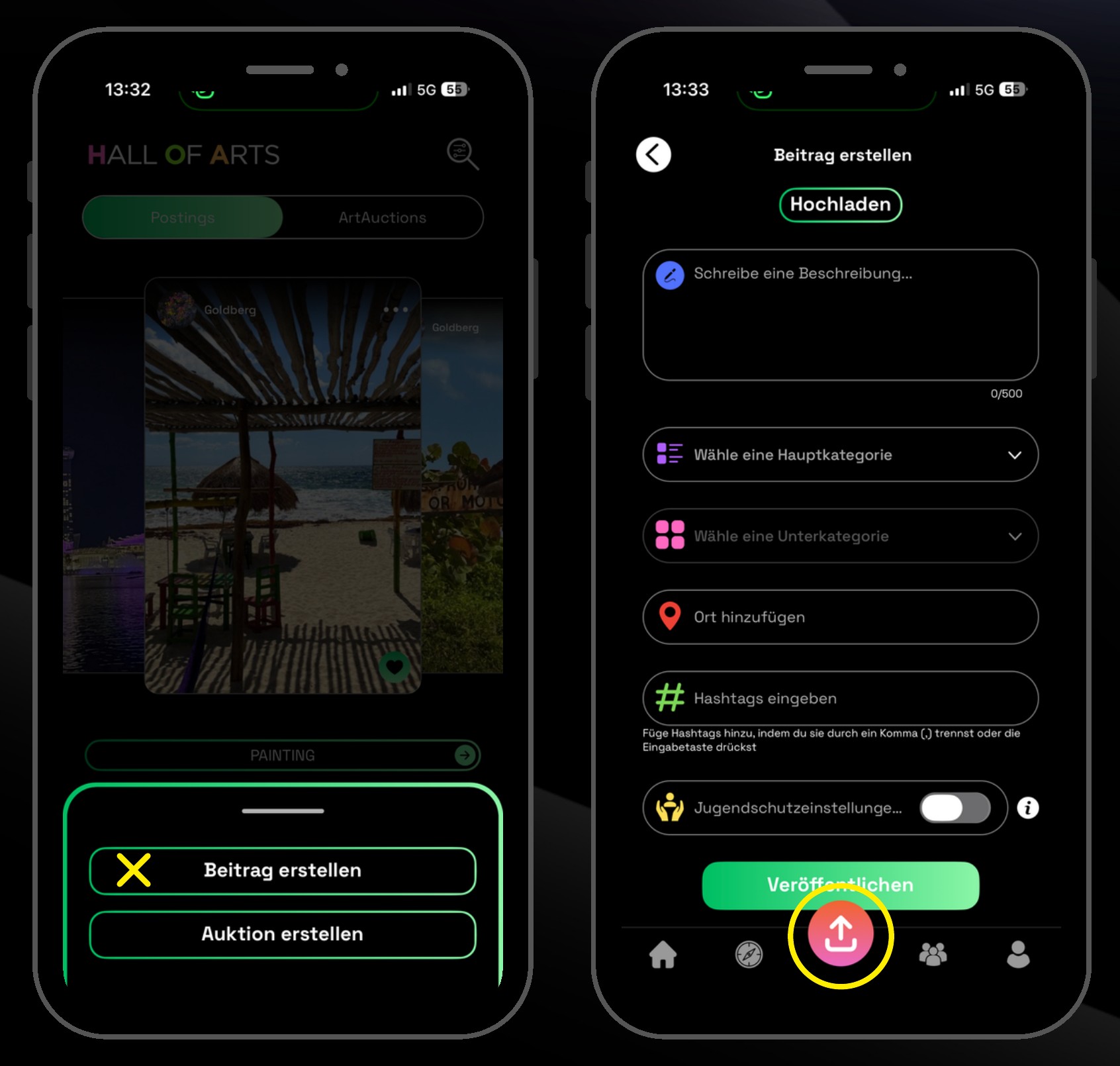
App screen showing the pink upload button and create post form
01

Create a post (Upload)

Want to share a photo or video with the community?

  • Tap the pink upload button in the bottom bar and select “Create post”.
  • Choose a file from your gallery via the icon or “Upload” button, or take a new photo directly.
  • Optionally add a description, your location, and matching hashtags to your post.
  • If your post includes sensitive content (e.g. sexual or violent), make sure to enable the age-restriction toggle.
Important: Please assign your post to at least one main category so other users can find it.
ArtAuctions

Create & bid on art auctions

Use the top navigation bar in the app to switch effortlessly between the post feed and all active auctions.

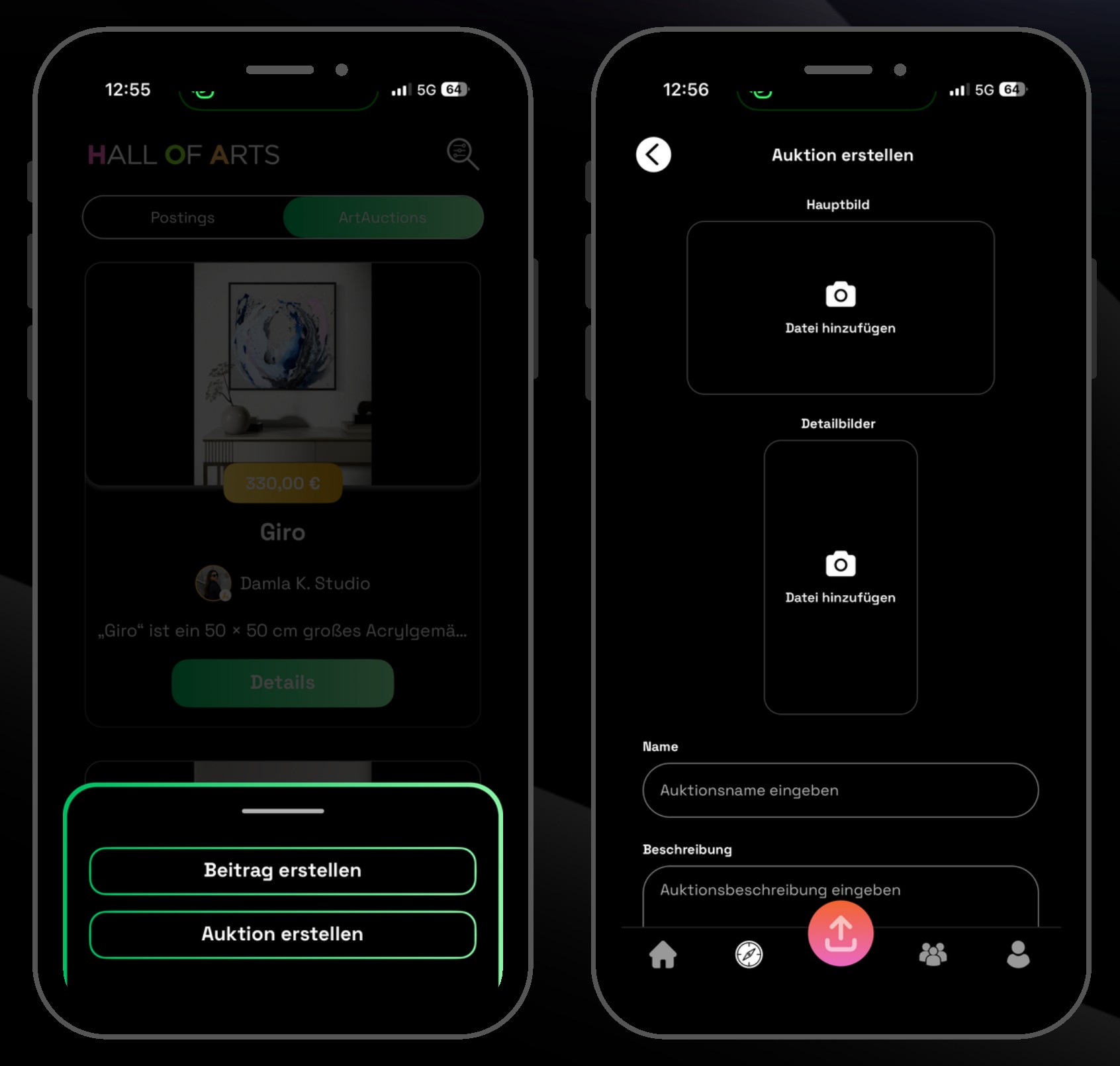
App screen showing how to create an auction with cover photo, details, title and description
01

Create an auction

Want to auction one of your own artworks?

  • Tap the upload button at the bottom of the screen and select “Create auction”.
  • Upload a cover image and detail photos, give your auction a title, and describe your artwork.
  • Set your starting price (which also acts as your minimum price) and choose the duration.

Then publish your auction, sit back, and look forward to the first bids!

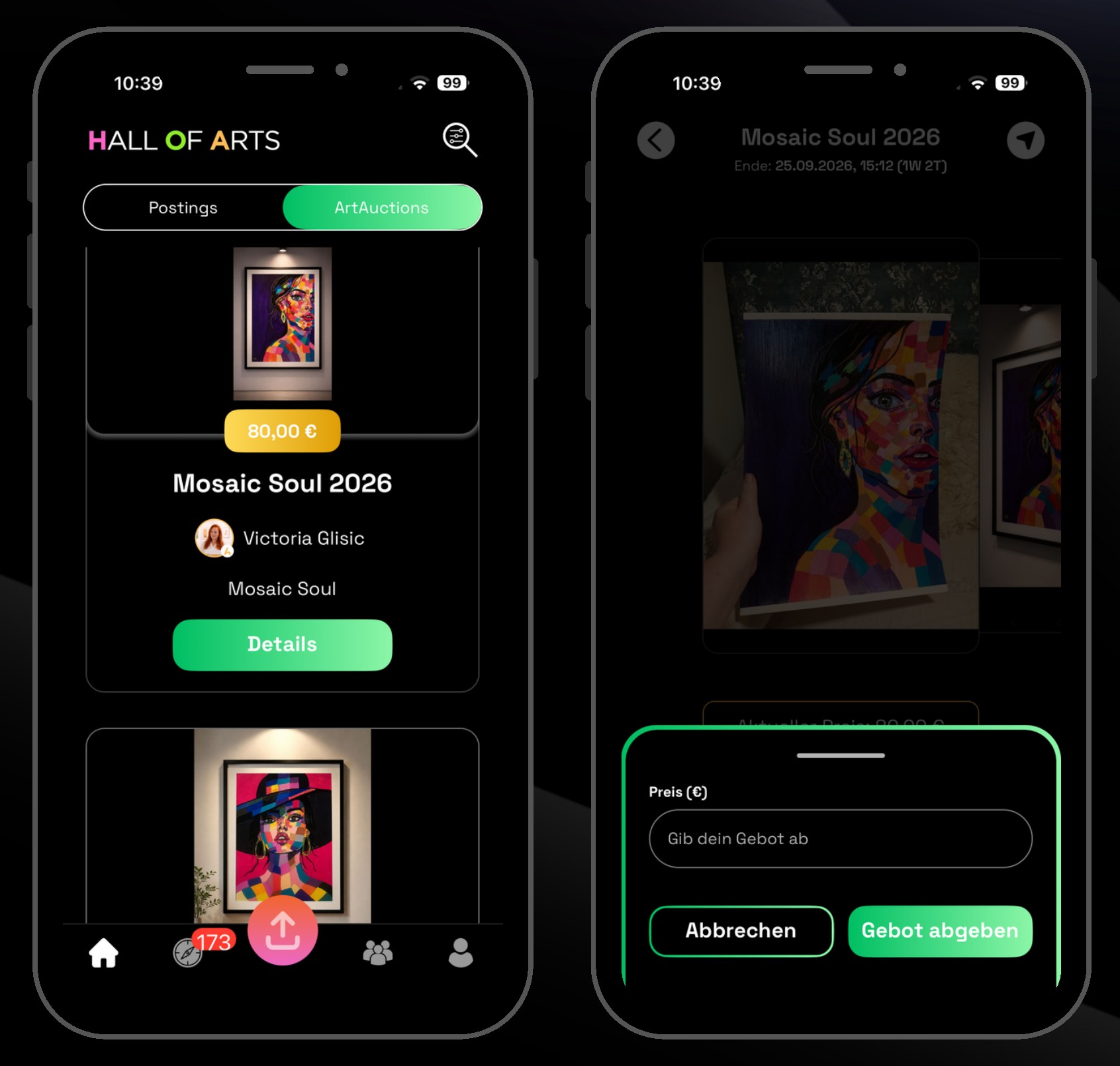
App screen showing active art auctions and placing a bid
02

Bid on an artwork

Want to learn more about an artwork?

  • Tap the title of an auction to open all details.
  • If a piece catches your eye, tap “Place bid”, enter your desired amount, and with a bit of luck win the artwork!
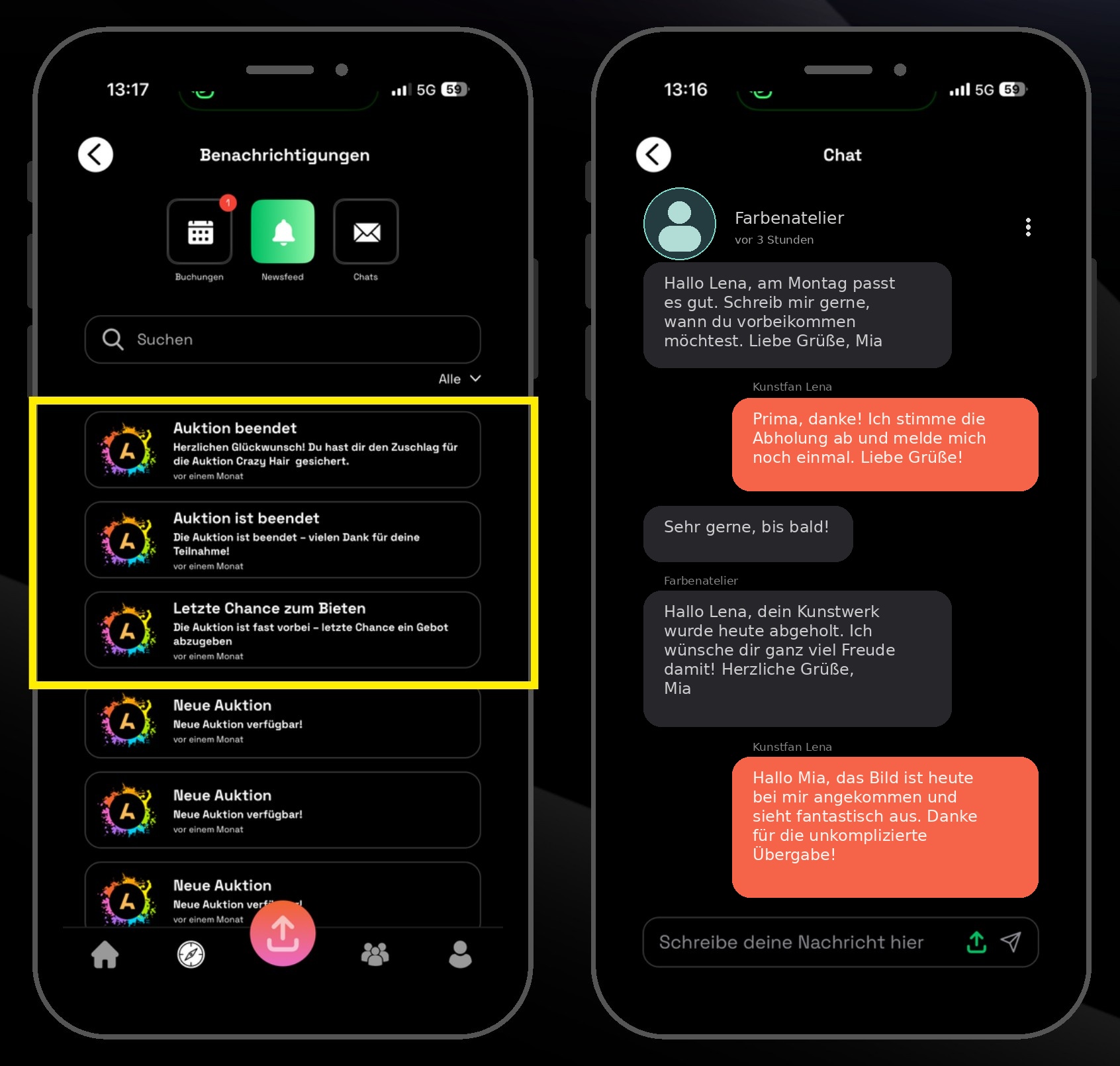
App screen showing auction notifications and private buyer-seller chat
03

Handover & payment

Once an auction ends, both seller and buyer immediately receive a notification about the winning bid. Tapping it opens a private chat.

  • Arrange all details for payment and handover of the artwork directly in the chat.
  • Make sure notifications are enabled so you never miss a bid.
Tip: Turn on notifications so you are informed right away and never miss a new bid!
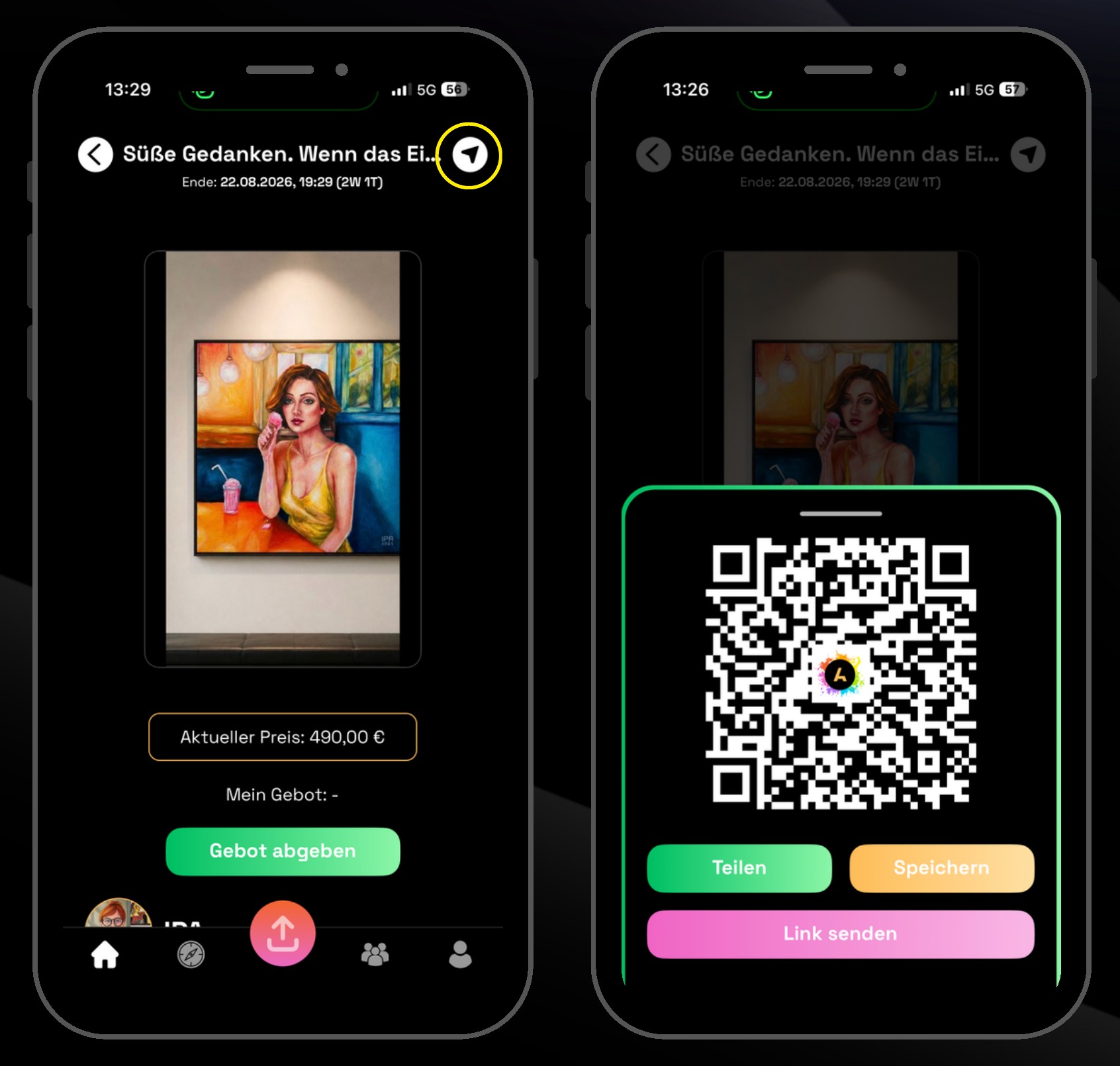
App screen showing the share button and QR code for an auction
04

Share your auction

Boost your reach and collect more bids!

  • Tap the highlighted share button to generate a direct link and QR code for your auction in one click.
  • Share it on your social media channels or send it directly to friends and contacts to draw more attention to your work.

Ready for your first steps?

Download the Hall of Arts app to share your first artwork or explore live auctions.